Draw. Pull. Make it yours.
Sketch lines, rectangles, circles, and freehand outlines. Turn faces into forms with Push/Pull, then move, scale, offset, and paint.
 BenchUp.
BenchUp is a free, open-source 3D modeling app for woodworking and furniture design. Plan a shelf, table, cabinet, or workbench with exact measurements, wood joinery, and grain orientation before you build. Use it on Windows, macOS, Linux, or right in your desktop browser.

Free & open source. No account needed.
Made for a desktop browser and a mouse.
Start with a simple shape. Keep the tools you need close, and your model at the center.
Sketch lines, rectangles, circles, and freehand outlines. Turn faces into forms with Push/Pull, then move, scale, offset, and paint.
Snap to geometry and axes, type exact lengths, and add dimensions. Organize the bigger picture with groups, components, and tags.
Autosave locally and download portable .bup projects. Import SketchUp geometry or export an OBJ to take your model further.
Plan how the boards meet, how the grain runs, and what you need in the workshop before the first cut.
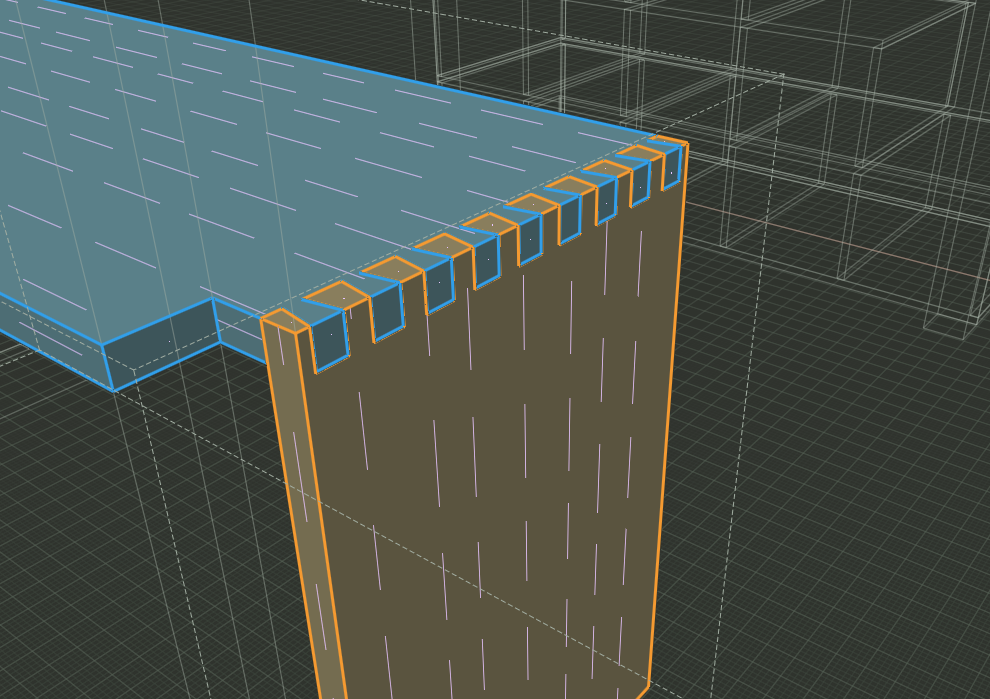
Create mortise-and-tenon, half-lap, tongue-and-groove, rabbet, dovetail, and finger joints, including angled connections. Adjust dimensions and clearance with live previews, inspect machining diagnostics and cut guides, and trim excess material while keeping the original boards editable.
Set the grain direction on groups and components and show grain-direction guides on the model. Review each board in the full assembly before building. Grain orientation stays with the project and follows the parts when they rotate.
Assign stock materials and wood types, configure sanding and finishing products, and prepare cut lists, cutting plans, and workshop labels. Export cutting plans and time and cost estimates to PDF to bring the design to the bench.
Start with the browser editor or download the desktop app. Read the user guide for modeling instructions and supported workflows.
The editor opens with a clean slate.
Here’s a good place to start.
Click one corner, then the opposite corner to create your first face.
Choose Push/Pull, click the face, move your mouse, and click to finish.
Choose Orbit and drag to look around. Scroll to zoom; press F to fit your model.
A desktop browser with hardware acceleration and WebGPU or WebGL2 support. Use a mouse and keyboard for modeling. You can also run BenchUp as a native Windows, macOS, or Linux app.
Your model is autosaved in this browser on this device. Use File → Save to download a .bup project you can keep or open again. Legacy .bup projects are also supported. Clearing browser data can remove autosaved work, so download projects you want to keep. There’s no cloud storage or account to set up.
Use File → Import/Export to import SketchUp (.skp) geometry or export Wavefront OBJ (.obj). Imports run locally. SketchUp textures, scenes, and some model features aren’t supported; OBJ export includes geometry without materials.
Yes. BenchUp is open source under the MIT license and written in Rust. Explore the code, read the full guide, or contribute on GitHub.